compile

Compiler
Download the Hello World file
After compilation, you need to download the compiled hello_word file to the development board for execution.
There are various methods to transfer files; choose the one that suits you best. Common methods include:
- ADB tool - adb-dat
- NFS mounted file system
- Using an SD card
We recommend using our ADB tool for file transfer. It requires no extra connections, just a single USB cable.
Flash Tools
SD card flash == https://www.balena.io/etcher/
- PhoenixSuit: A Windows-based flashing tool, the most commonly used. Connect the PC and development board via a data cable to flash firmware onto the board. Supports partition flashing, suitable for development and small-scale production. Developers are advised to use this tool for firmware upgrades.
- LiveSuit: An Ubuntu-based flashing tool. Connect the PC and development board via a data cable to flash firmware onto the board. It is the Ubuntu version of PhoenixSuit, suitable for Ubuntu developers.
- PhoenixUSBpro: A Windows-based flashing tool. Connect the PC and development board via a data cable to flash firmware onto the board. One PC can connect up to 8 devices simultaneously for batch flashing, suitable for mass production.
Flash
- Hardware: 2 x Type-C cables
- Software: Allwinner flashing tool: AllwinnertechPhoeniSuit
- Software: SPI Nor system image: tina_d1s-nezha_nor_uart0_nor
- Software: Allwinner USB flashing driver: AllwinnerUSBFlashDeviceDriver
repo
images and tools - https://github.com/Edragon/allwinner-tools
- https://github.com/Edragon/Allwinner-V831
- https://bitbucket.org/e_dragon/allwinner-f1c200s-sdk
https://bitbucket.org/e_dragon/allwinner-v3s-sdk== https://gitlab.com/hechaogm/allwinner-v3s-sdk/-/tree/master?ref_type=heads- https://gitlab.com/users/dongshanpi/projects
D1-S Flash
操作步骤
将所有文件拷贝到 Ubuntu系统的 ~ 目录下
执行如下解压缩命令,等待解压缩 完成
cat tina-d1-h.tar.bz2.* | tar -jxv
- 解压缩完成后 继续参考 http://riscv64.dongshanpi.com/ 页面 Tina-SDK-V2.0相关资料
所有文件MD5校验值
Ubuntu下输入 md5sum tina-d1-h.tar.bz2.* 查看
e755bae00cd76afc3fb276b4e3fd86ba tina-d1-h.tar.bz2.00 cb60ecfdb51c624ff3cbd7b24552866f tina-d1-h.tar.bz2.01 54e56a4cf1cef46ca0a94b85ea1d33a1 tina-d1-h.tar.bz2.02 4988fa08827c0f7af2dc170145e24b26 tina-d1-h.tar.bz2.03 a0463bcf8e73db27b5ecafaac593a919 tina-d1-h.tar.bz2.04 a87382ca16a8c12b3a94f1cad99ce77e tina-d1-h.tar.bz2.05 5973530baa3b282108351818641c27fd tina-d1-h.tar.bz2.06 ccd63e1d16534b364a101d2d44416261 tina-d1-h.tar.bz2.07 e0d72713565f4424ea43c07e15a38139 tina-d1-h.tar.bz2.08
system image and SDK
- contact and find in our google drive
Flash
Allwinner Official Tools
- Allwinner system TF card flashing tool: PhoenixCardv4.2.7.7z.7z
- Allwinner system OTG flashing tool: AllwinnertechPhoeniSuitRelease20201225.zip.zip Community version flashing tools
- Complete TF card flashing tool: win32diskimager-1.0.0-install.exe
- TF card formatting tool: SDCardFormatterv5_WinEN.zip
Flashing Allwinner D1 System Image to TF Card (Tutorial)
Step 1: Format the TF Card
- Insert the TF card into a card reader, then connect the reader to your computer's USB port.
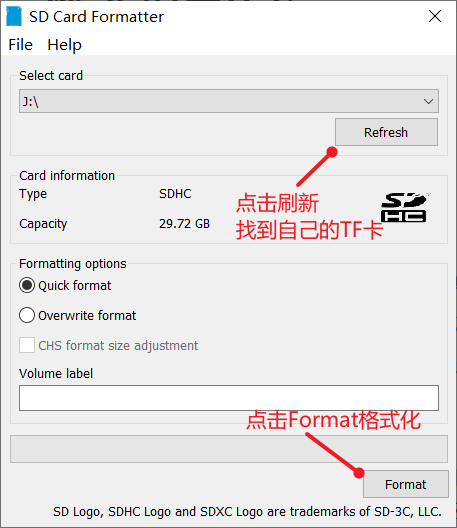
- Use the SD Card Formatter tool to format the TF card. Backup any important data before formatting.
- In the SD Card Formatter interface:
- Click "Refresh" to detect your TF card.
- Select your TF card from the list.
- Click "Format" and confirm by clicking Yes in the dialog.
- Wait for the formatting process to complete.
Step 2: Burn the System Image
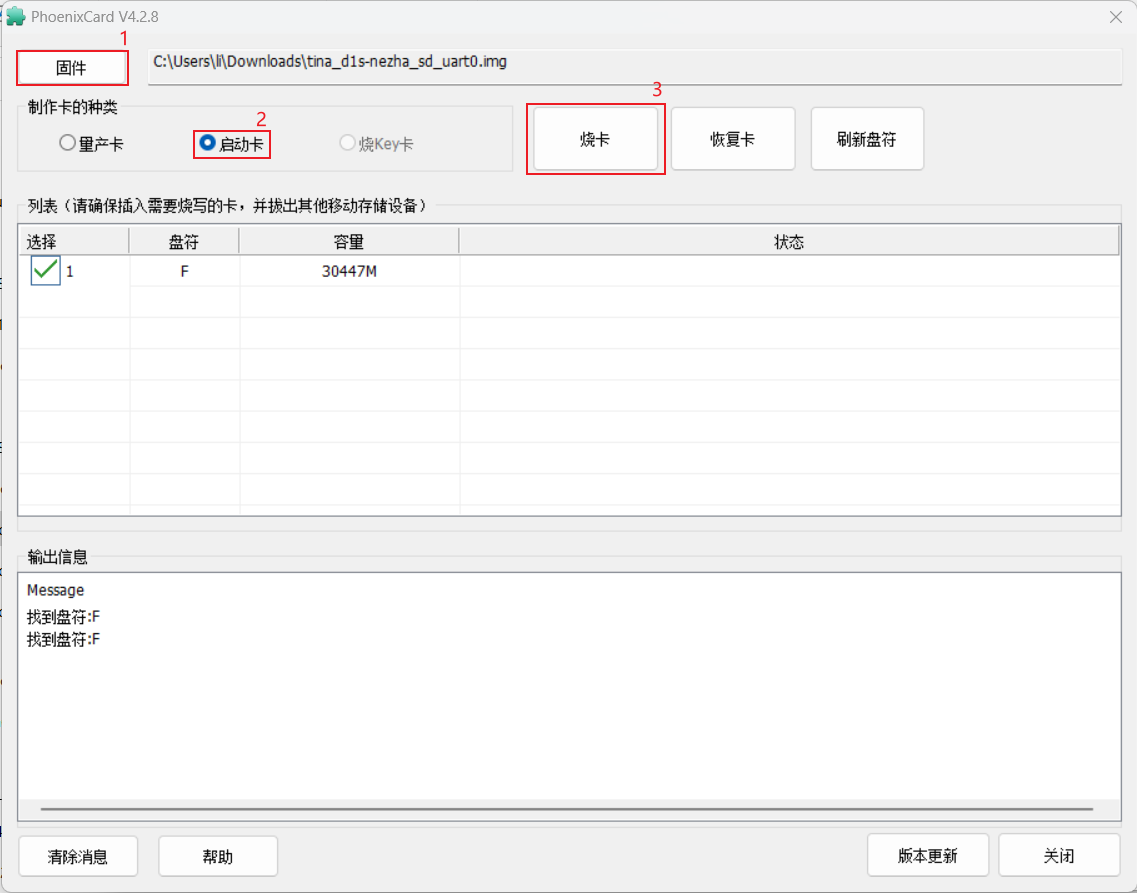
- After formatting, open the PhoenixCard.exe tool.
- In PhoenixCard:
- Find and select your TF card drive letter.
- Click the "Firmware" button (red box 1) and choose the extracted
tina_d1s-nezha_sd_uart0.imgimage file. - Click "Startup Card" (red box 2).
- Click "Burn" (red box 3) and wait for the burning process to finish.