Usually comes with the xboot tools:
git clone https://github.com/xboot/xfel.git
cd xfel
make
make clean && make
release
wget https://github.com/xboot/xfel/releases/download/v1.3.3/xfel-windows-v1.3.3.7z
for F133-A
xfel version
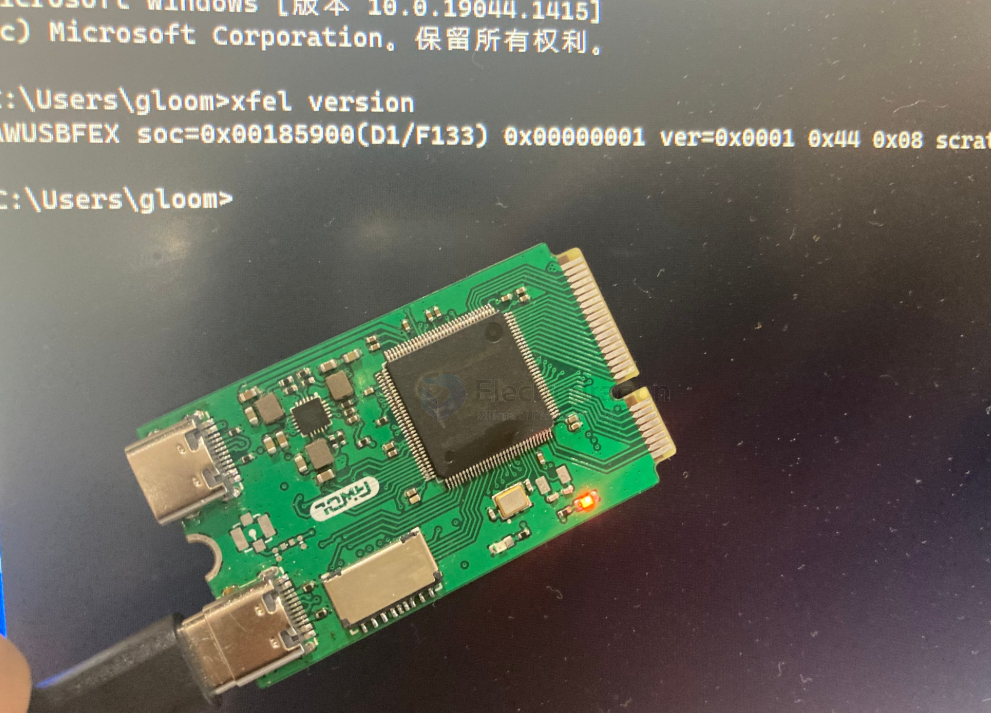
🧩 XFEL Entry Procedure for F133-A / D1s
-
Power off the board
- Disconnect power or USB.
-
Press and hold the FEL button
- This button is usually marked "FEL" or "BOOT" on the board.
- If not labeled, refer to the schematic: it connects to GPIO PL4.
-
Power on the board while holding FEL
- Plug in the USB cable or apply power.
- Keep holding the button for 2–3 seconds, then release.
-
Verify FEL mode on your PC
- Run:
bash lsusb - You should see something like:
Bus 001 Device 005: ID 1f3a:efe8 Allwinner Technology sunxi FEL mode
- Run:
-
Optional: Confirm with
xfel- If
xfelis installed:bash xfel version - Output should confirm connection:
EGON version: 0x0001a00
- If
Overview
| Feature | sunxi-fel |
xfel |
|---|---|---|
| Origin | Part of sunxi-tools (by linux-sunxi) | Part of xboot (by xboot developers) |
| Language | C | C (standalone, simplified) |
| Compatibility | Many Allwinner SoCs (A10, A20, H3, A64, etc.) | Primarily designed for Allwinner D1 / D1s |
| Use Case | General FEL access, u-boot, RAM boot | Simplified D1 booting, xboot-specific flashing |
| Device Support | Broad SoC support (A-series, H-series) | Mostly tested on D1, D1s (RISC-V) |
| Features | Read/write memory, boot u-boot, script exec | Load boot package, run xboot, SPI flash, etc. |
| Dependencies | Requires libusb
|
Self-contained |
| Project Maturity | Older, well-established | Newer, focused on xboot platform |
| Command Interface | CLI | CLI |
✅ When to Use What
| Situation | Recommended Tool |
|---|---|
| Working with legacy Allwinner ARM SoCs (e.g. A10, A20, A64, H3) | sunxi-fel |
| Using D1 / D1s (RISC-V) board, especially with xboot or SDKs | xfel |
| Booting board into RAM for development/recovery | Either, but sunxi-fel is more general |
| Flashing an XBoot-based firmware to D1s | xfel |
Using xfel (D1/D1s with xboot):
xfel ddr d1s_ddr.bin
xfel write 0x40000000 xboot.bin
xfel exec 0x40000000
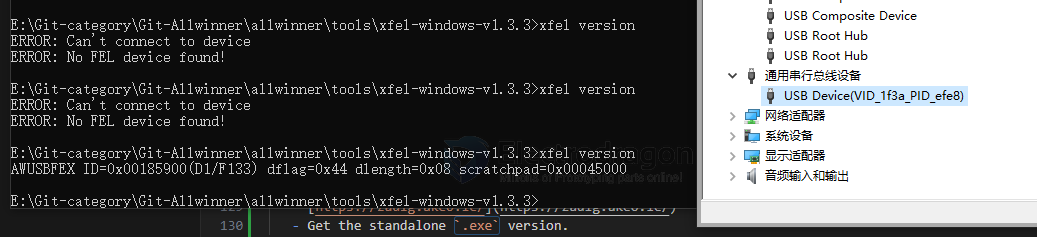
No FEL device found
❌ xfel Windows: "No FEL device found" — Troubleshooting
Even though Windows detects the USB device (VID_1f3a PID_efe8), the xfel tool shows:
ERROR: Can't connect to device
ERROR: No FEL device found!
This typically means the driver is not correctly bound to allow xfel.exe access.
🛠️ Fix: Install the Correct WinUSB Driver
You must install the WinUSB driver for the FEL device using a tool like Zadig:
✅ Step-by-step with Zadig:
-
Download Zadig:
- https://zadig.akeo.ie/
- Get the standalone
.exeversion.
Launch Zadig as Administrator.
-
Find the FEL device:
- Menu:
Options→ Check ✅List All Devices - In the dropdown, select:
Allwinner USB Device (1f3a:efe8)
- Menu:
-
Install
WinUSBdriver:- In the right pane, change the driver to:
WinUSB (libusb) - Click
Install DriverorReplace Driver.
- In the right pane, change the driver to:
Wait for installation to complete.
-
Retry
xfel:xfel versionYou should now get output like:
xfel v1.3.3
EGON: 00000000