projects - pi-camera-stream-flask
network or local streaming - pi-MJPEG-Streamer - pi-cam-opencv
camera stream and GPIOs control - pi-cam-flask-control
and
mplayer + fswebcam
player and software
sudo apt-get install mplayer -y
sudo apt-get install fswebcam -y
Input following command to view USB camera picture.
sudo mplayer tv://
After confirming the screen, you need to exit through “ctrl+c” before proceeding to the next operation.
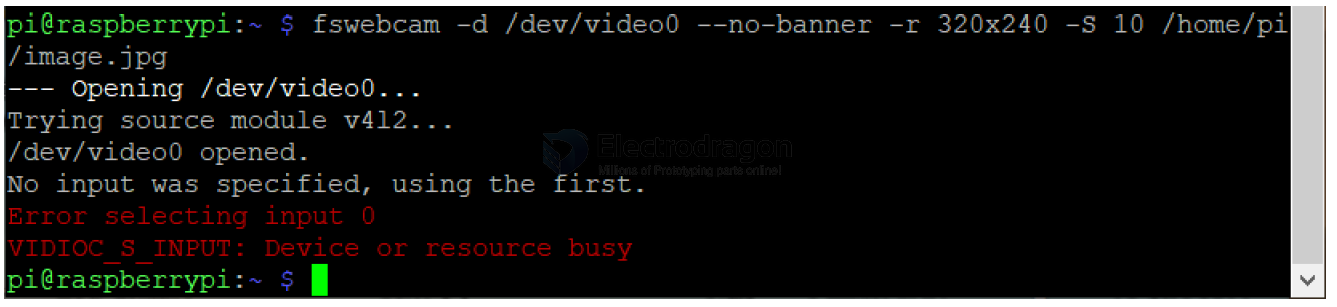
If you run mplayer and use the fswebcam command at the same time, the system will prompt an error that the camera is busy. As shown below.
Input following command to generate a real-time photo taken by the current camera in the /home/pi directory
fswebcam -d /dev/video0 --no-banner -r 320x240 -S 10 /home/pi/image.jpg
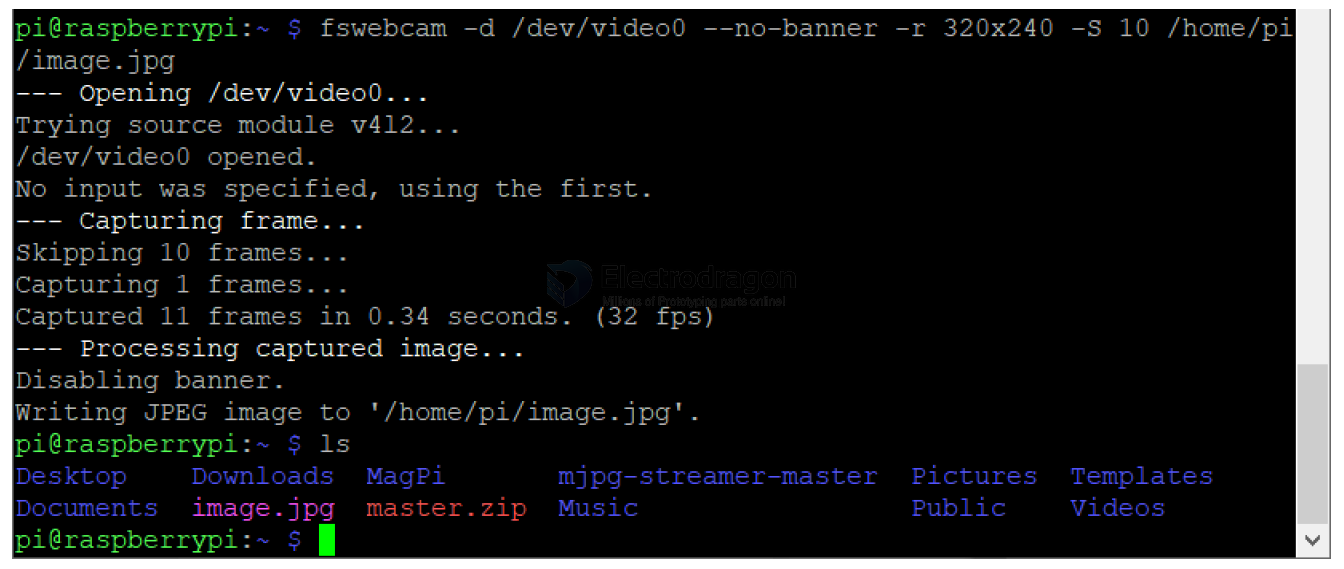
Parameter explanation:
- -d -- configure which camera device to use
- --no-banner --- There is no watermark in the photos taken. If this parameter is not used, the system may prompt a wrong font
- -r -- Size of picture
- -S -- Visibility, the range is from 1 to 10. If this parameter is not set or this parameter is set to 0, the photo will be black.
- /home/pi/image.jpg -- Save the image path (if you do not add the path, picture will be saved in the current directory /home/pi/ by default ).
raspistill
raspistill -o image.jpg
raspivid
raspivid -o video.h264
picamera
sudo apt-get install python3-picamera